Debugging
🔗 Original page — Source of this material
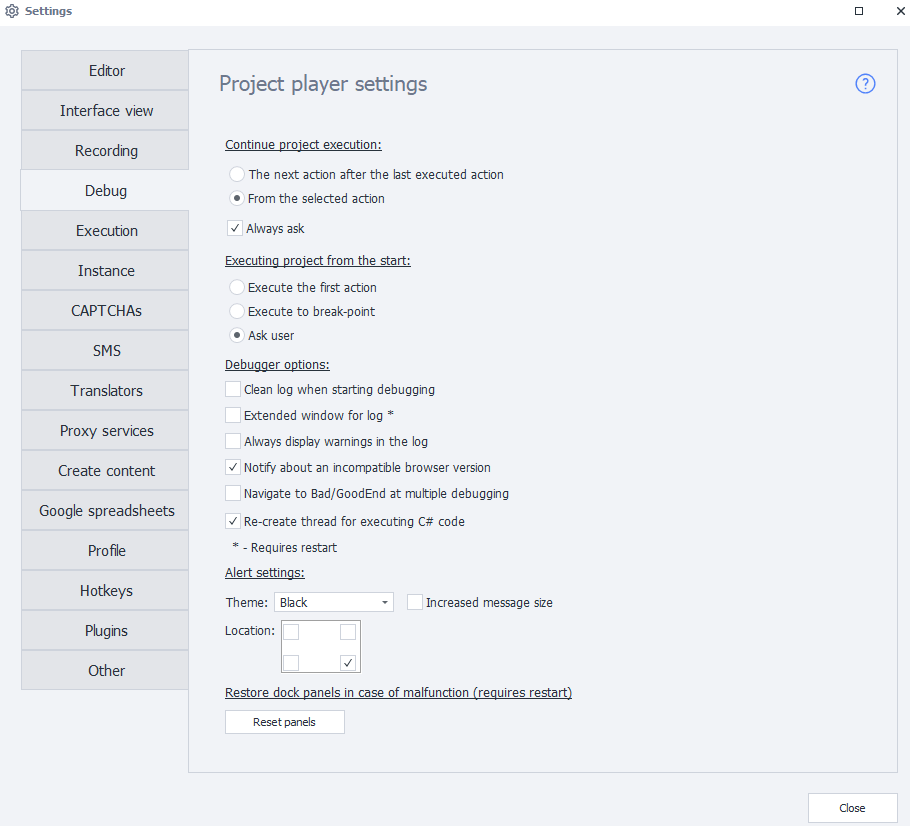
Where project execution will continue from
These settings control how the project behaves when you click the Next or To End buttons.
Next action after the last executed one
The project will continue from the next action after the last one that was completed.
From the selected action
The project will continue execution from the action you currently have selected in the project diagram.
Always ask
This checkbox determines whether you are prompted to choose between the two options above every time you resume execution.
Running the project from the start
This setting controls how the project behaves when you click From Start.
Execute the first action
When you select this option, clicking From Start moves the project's focus to the first action.
Execute up to breakpoint
Actions run up to the first breakpoint, or to the end of the project if there are no breakpoints.
Ask
You will be prompted to choose the execution behavior each time.
Debugger options
Delayed execution visualization
Enables real-time visualization of actions being performed. This setting is useful when debugging long projects and projects with loops.
Clear the log at the start of debugging
Each time the project is run From Start, the log is cleared automatically.
Extended log window
The log will be displayed in a window with extra options and the ability to copy text.
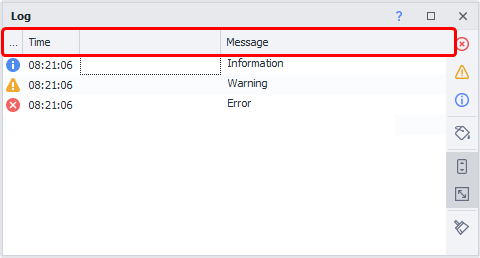
A restart is required to apply this option
Always show warnings in the log
Additional warnings will appear in the log. For example:
Выполнение логического оператора If Результат: falseif the IF action follows the red branch.
Show warning about unsupported browser version
Displays a warning in the log if the main and nested projects use different browser engine versions.
This can happen when using the Project in Project action if a different browser type is selected in the nested project's settings. For example, the main project uses Firefox 52 and the nested project uses Firefox 45.
If this setting is enabled, the following warning appears in the log when the nested project starts:
Выполнение действия ProjectInProject. Текущий браузер Firefox52 не подходит для вложенного проекта, требуется Firefox45. Возможна некорректная работа вложенного проекта.
Switch to Bad/GoodEnd on multiple debug runs
Allows execution to enter the BadEnd and GoodEnd blocks repeatedly while debugging a project.
The destination depends on the result:
- BadEnd if an error occurs;
- GoodEnd if execution completes successfully.
Execution can enter BadEnd or GoodEnd only once per project run.
To enter either block again, restart the project using From Start.
Recreate C# code execution thread
This setting may help avoid memory leaks in ProjectMaker on AMD processors when executing C# code. The underlying bug is in .NET Framework.
If you use C# with ThreadStatic in your projects, disable this setting.
Notification settings
This setting controls notifications that appear on the desktop.
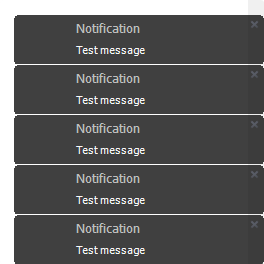
Theme.
Choose the notification background color:
- Black, black;
- White, white;
- Blue, blue;
- Green, green;
- Orange, orange;
- WhiteRed, red and white.
Large message size.
Notifications will be shown in a larger format.
Location.
Choose where notifications appear on the desktop:
- bottom right (default);
- bottom left;
- top left;
- top right.
Resetting dock panel positions if something goes wrong
The Reset panels button restores the default arrangement of program windows if you have undocked, moved, or closed them.
